Checking a domain’s history means looking at past owners, past content, and any flags. Five areas cover nearly everything: ownership, content, spam flags, backlinks, and search visibility.
This guide walks through each one, with the tools and steps that actually work.
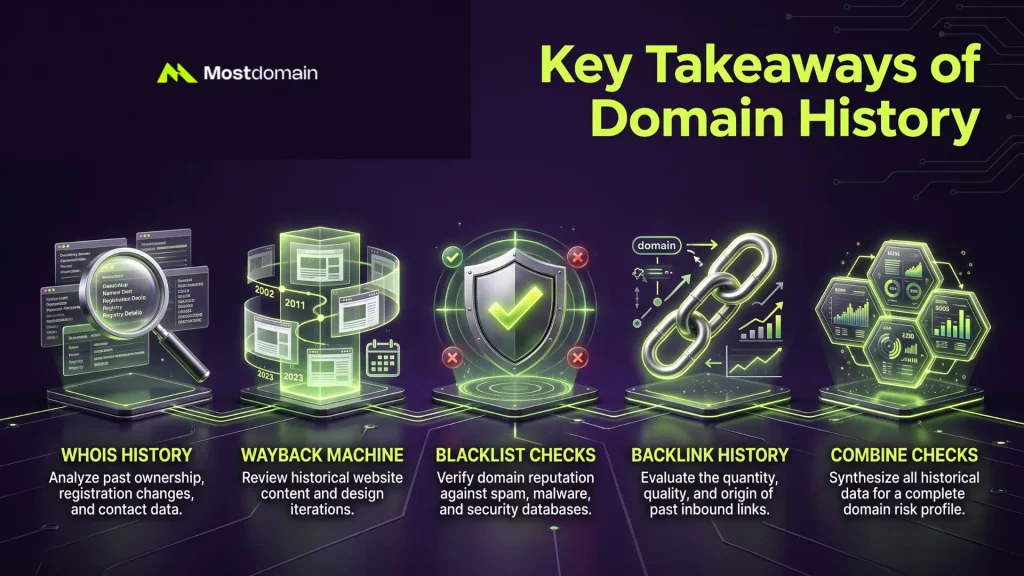
Key Takeaways of Domain History
A domain’s past can quietly become your problem. History checks matter before you pay.
- Past owners and registrar changes show up in WHOIS history tools.
- The Wayback Machine reveals what a domain actually hosted, years back.
- Blacklist and malware checks catch security flags a seller might not mention.
- A backlink history check flags toxic links, not just link volume.
- No single check is proof on its own. Combine several before deciding.
Why Domain History Matters Before You Buy
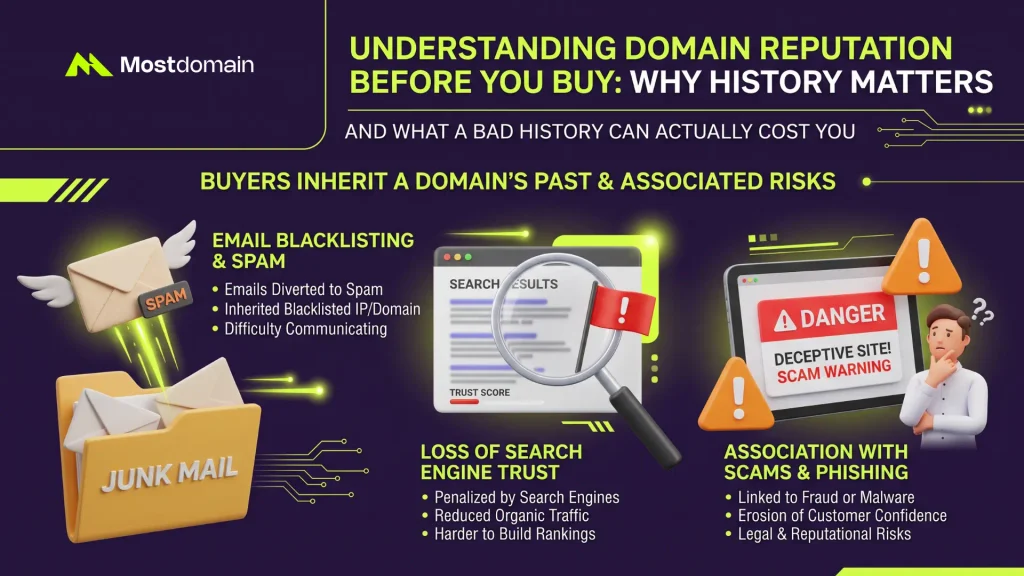
A domain’s history matters because you inherit it the moment the transfer completes.
What a Bad History Can Actually Cost You
Past misuse can follow a domain for years, in ways buyers rarely expect.
- Email sent from a spam-flagged domain often lands straight in junk folders.
- Search engines can be slow to fully trust a domain with a rough past.
- Past scam or phishing associations can confuse customers who remember the old site.
- None of this is common, but each one is cheap to check beforehand.
How to Check Who Owned the Domain Before
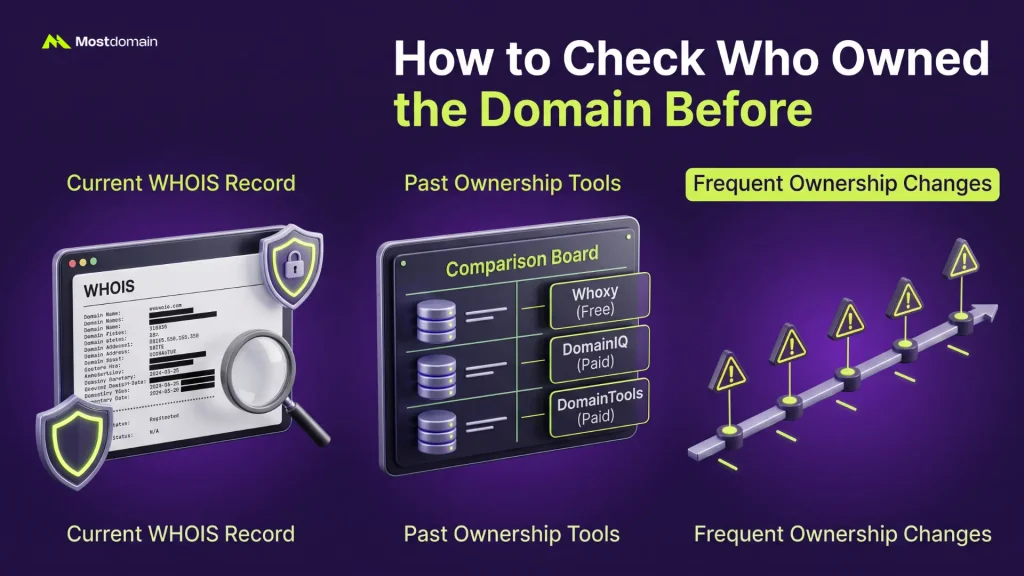
Checking ownership history starts with WHOIS, then moves into records tracking changes over time.

Reading the Current WHOIS Record
The current WHOIS record shows today’s registrant, registrar, and key registration dates.
- Privacy protection can hide the registrant’s name from public view.
- Registration and expiration dates still show, even with privacy active.
- Our WHOIS guide covers how to read every field correctly.
Finding Past Ownership Records
Past WHOIS records reveal who owned a domain before its current registrant.
| Tool | Cost | What it shows |
| Whoxy | Free | Past ownership records, including some GDPR-hidden data |
| DomainIQ | Paid | WHOIS history alongside ownership pattern analysis |
| DomainTools Research | Paid | Detailed change-by-change ownership and status history |
- Free tools often cover the basics well enough for a routine check.
- Paid tools make more sense for a high-value or complicated purchase.
What Frequent Ownership Changes Might Mean
Several ownership changes in a short window deserve a second look, nothing more automatic.



- A domain flipped once or twice isn’t unusual in this industry.
- Rapid changes across many owners can point to disputes or abandoned projects.
- Registrar changes alongside ownership changes are worth noting too.
- Context matters more than the raw number of changes by itself.
How to Check a Domain’s Past Content
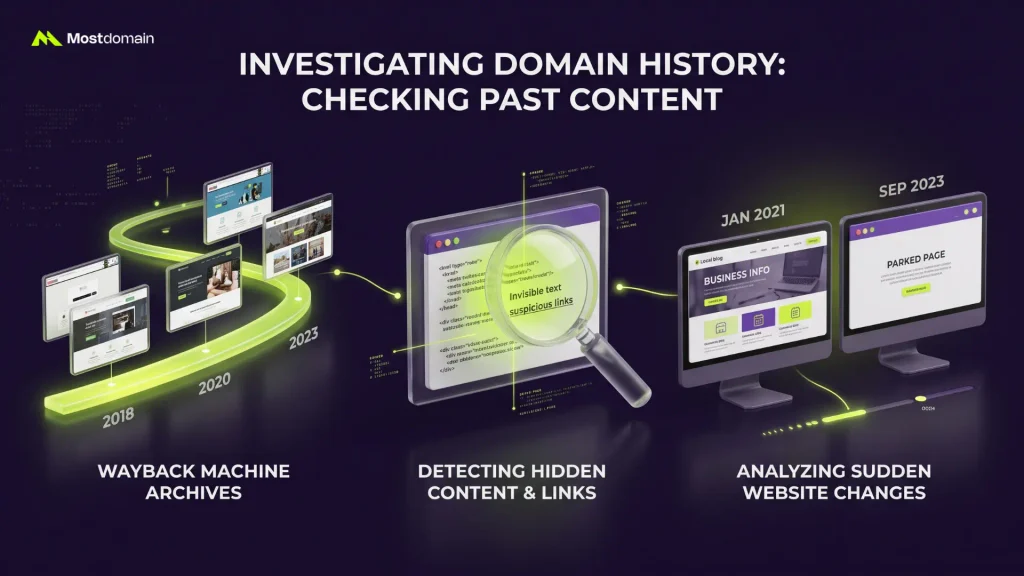
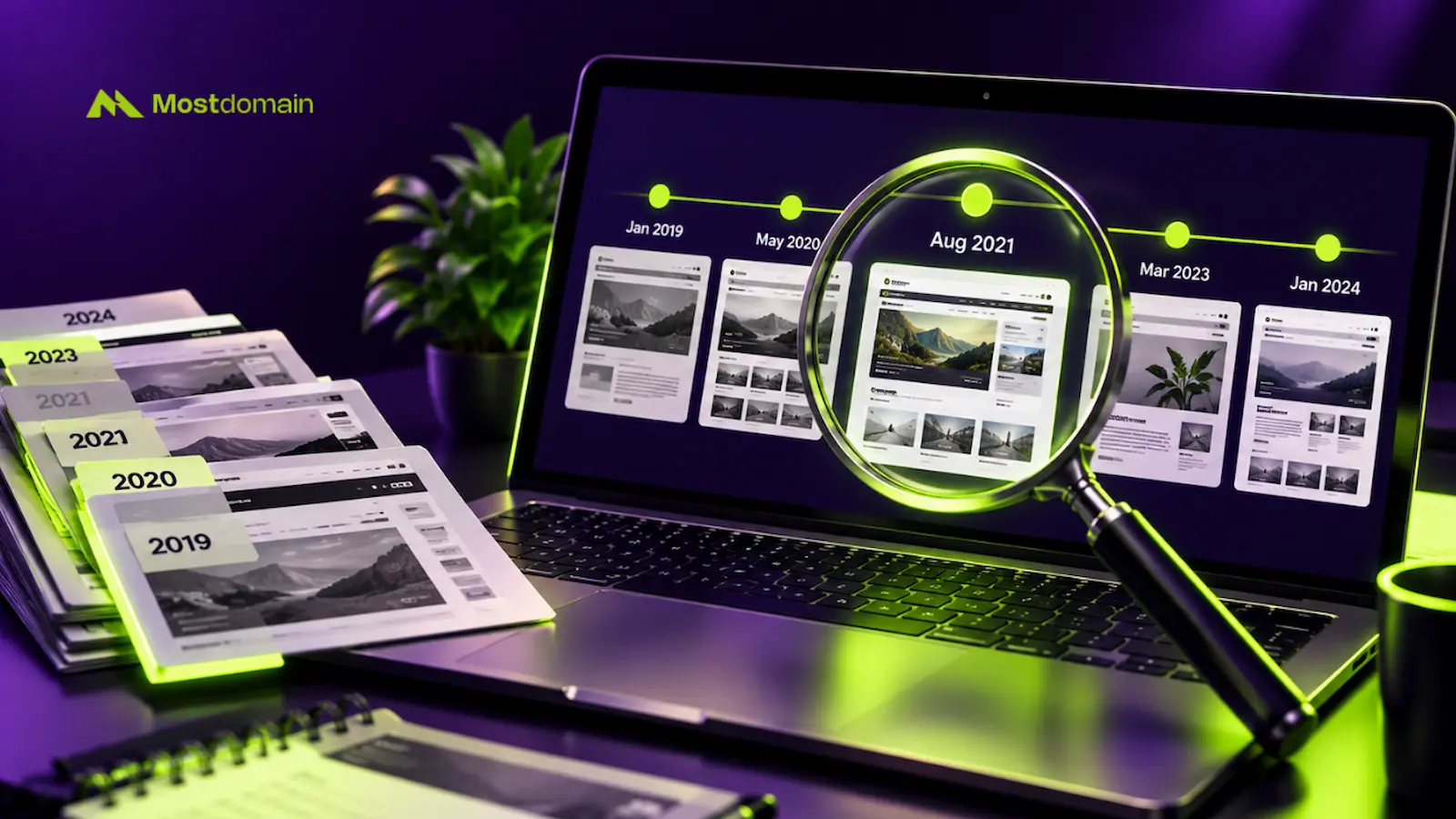
Checking past content means reviewing what a domain actually displayed, using saved snapshots.
Using the Wayback Machine the Right Way
Run the domain through the Wayback Machine at web.archive.org. Check several years, not just one.
- Pull three to five snapshots per year, spread across the timeline.
- One clean snapshot can hide a messy period elsewhere in the archive.
- Gaps in the archive aren’t automatically suspicious. Some sites simply weren’t crawled often.
What to Look For in Old Snapshots
Old snapshots tell you whether the domain hosted something real, or something worth avoiding.
- Was it a working business, a blank parked page, or something else entirely?
- Watch for adult content, gambling, or anything openly promoting illegal activity.
- Check whether the site redirected somewhere unrelated at any point.
- A snapshot that looks nothing like the domain name itself deserves a closer look.
Spotting a Sudden Content Change
A domain flipping content overnight behaves nothing like a normal, evolving website.
- Legitimate sites usually change gradually: new pages, updated design, steady growth.
- A sudden jump from a real business to thin, unrelated content signals trouble.
- Compare snapshots close together in time to catch this kind of shift.
How to Check for Spam and Security History
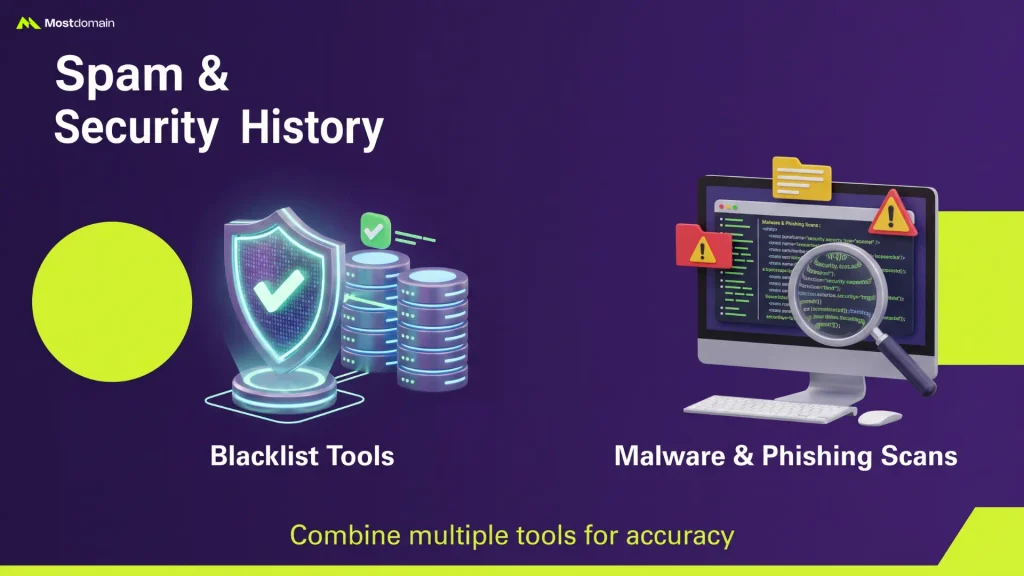
Checking security history means running the domain through blacklist and malware detection tools.
Blacklist and Blocklist Tools to Run
Spamhaus and SURBL are two of the most established blocklist databases to check.
- A current listing means active problems. A past listing that’s since cleared is less concerning.
- Google Safe Browsing flags sites tied to malware or phishing specifically.
- Run more than one tool. Databases don’t always agree with each other.
Checking for Malware and Phishing History
VirusTotal can scan a domain for a history of malware or phishing associations.
- A clean scan today doesn’t rule out problems from years earlier.
- Combine this with the Wayback Machine check for a fuller picture.
- Persistent flags across multiple tools carry more weight than a single hit.
How to Check a Domain’s Backlink History
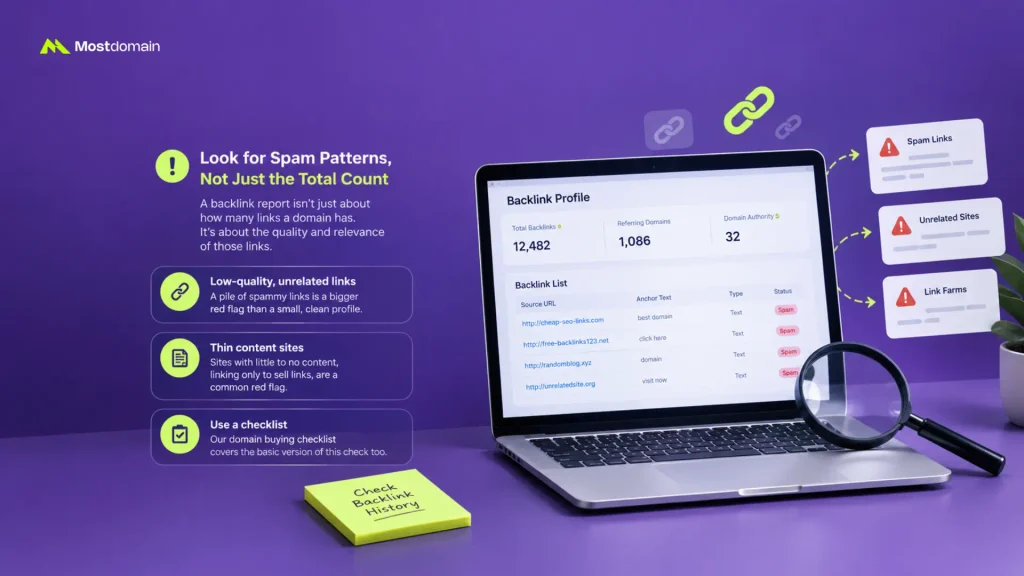
A backlink history check here is about safety, not SEO value or ranking potential.
Reading a Backlink Report for Red Flags, Not Rankings
Pull a backlink report and scan for spam patterns, not just the total count.
- A pile of low-quality, unrelated links matters more than a small, clean profile.
- Thin content sites linking purely to sell links are a common red flag.
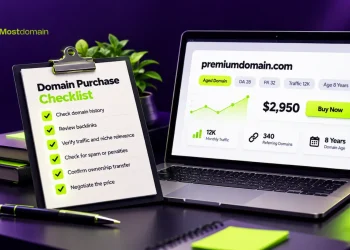
- Our domain buying checklist covers the basic version of this check too.
How to Check Search Visibility History
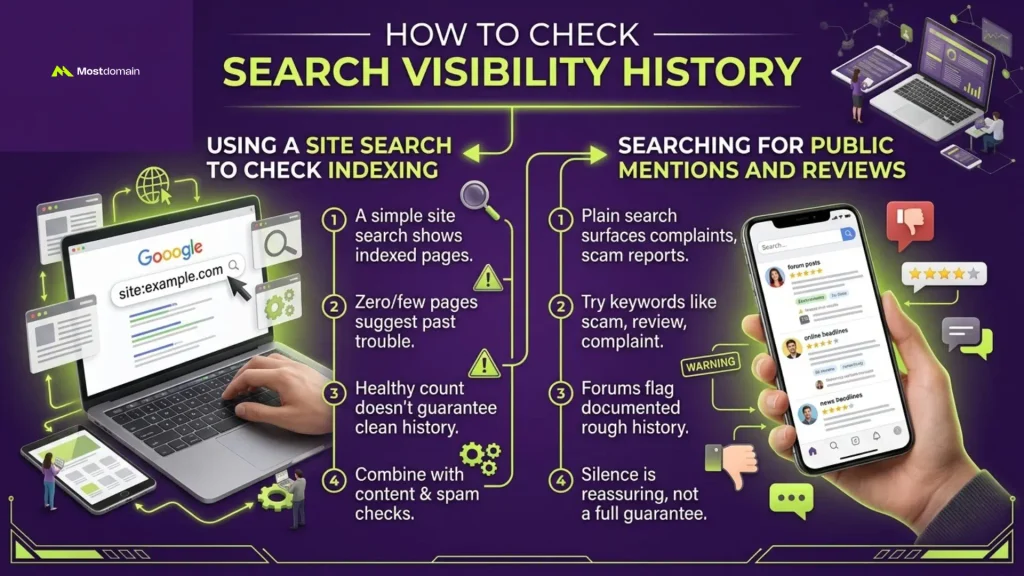
Checking search visibility means seeing how a domain currently shows up in search results.
Using a Site Search to Check Indexing
A simple site search, like site:example.com, shows how many pages Google has indexed.
- Zero or very few indexed pages can suggest past search-engine trouble.
- A healthy page count isn’t proof of a clean history on its own.
- Combine this signal with the content and spam checks above.
Searching for Public Mentions and Reviews
A plain search for the name can surface complaints, scam reports, or old news.
- Try the domain alongside words like scam, review, or complaint.
- Forums and community sites sometimes flag names with a documented rough history.
- Silence in search results is reassuring, though not a full guarantee.
Clean History or Red Flag? Putting It Together
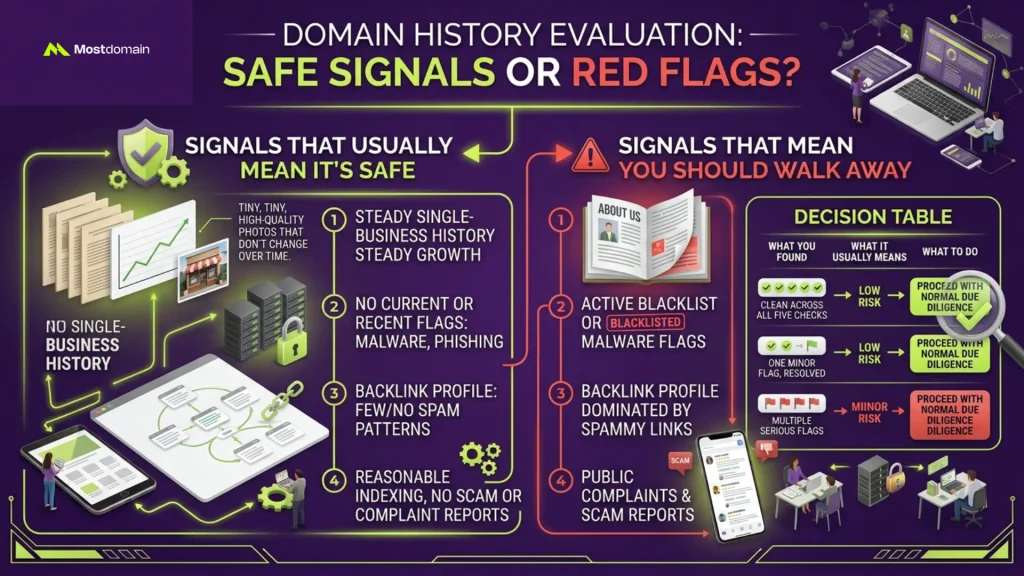
No single check proves a domain is safe. The full picture comes from combining all five.
Signals That Usually Mean It’s Safe
A domain generally checks out clean when several signals line up in its favor.
- A steady, single-business history across most Wayback snapshots.
- No current or recent blacklist, malware, or phishing flags.
- A backlink profile with few or no obvious spam patterns.
- Reasonable indexing, with no public scam or complaint reports.
Signals That Mean You Should Walk Away
Multiple red flags stacking together is a much stronger warning than any one alone.
- A sudden switch from real content to thin, unrelated spam.
- Active blacklist or malware flags that haven’t cleared.
- A backlink profile dominated by low-quality, spammy links.
- Public complaints or scam reports tied specifically to that domain.
Decision Table
Weigh what you found against how much the name actually matters to you.
| What you found | What it usually means | What to do |
| Clean across all five checks | Low risk | Proceed with normal due diligence |
| One minor flag, since resolved | Usually low risk | Ask the seller for context, then proceed |
| Several unrelated minor flags | Moderate risk | Weigh the name’s value against the risk |
| One serious flag (malware, active blacklist) | High risk | Walk away, or get expert help first |
| Multiple serious flags | High risk | Walk away |
FAQ
How far back should I check a domain’s history?
Check the domain’s entire recorded history, not just the past year or two.
- Older spam periods can still affect email deliverability and trust today.
- The Wayback Machine often holds records going back well over a decade.
- A quick scan of every era beats a deep dive into just one.
Is a domain with no history a good sign?
Not necessarily. It usually just means the domain was never actively used.
- No history isn’t the same as a clean, proven history.
- This is common for names bought purely to hold or resell.
- Treat it as neutral, not automatically positive.
Can a bad history be fixed after I buy?
Some problems clear with time. Others are much harder to shake off.
- Blacklist flags often clear once the misuse stops and enough time passes.
- Search engine trust issues can take longer to fully resolve.
- Severe or repeated issues are the hardest to recover from.
Do I need paid tools to check domain history?
No, free tools cover most of what a routine check actually needs.
- The Wayback Machine, Google Safe Browsing, and Whoxy are all free.
- Paid tools like DomainIQ add convenience and deeper historical detail.
- Save paid tools for higher-value or genuinely uncertain purchases.
What if the domain was parked the whole time?
A domain parked its entire history is usually low risk, though not risk-free.
- Parked domains rarely pick up spam or blacklist flags.
- Still run the blacklist and malware checks, since exceptions do happen.
- A parked history simply means less to verify overall.
Does domain history checking apply to brand-new names?
No, a freshly registered name has no history to check at all.
- These checks only apply to names someone already owned before.
- A brand-new registration starts with a completely clean slate.
- See our guide on how the domain aftermarket works for more context.
How long does a full history check take?
Most checks take fifteen to thirty minutes when run in this order.
- WHOIS and Wayback checks are quick, often five minutes each.
- Blacklist and backlink tools add another ten to fifteen minutes.
- Budget more time for a name with conflicting or unclear signals.
One Search Away From a Bad Surprise
Most bad domain histories reveal themselves within the first few checks.
- A quick WHOIS and Wayback pass catches the majority of real problems.
- Don’t skip the remaining checks just because the first two look clean.
- Fifteen minutes of history checking is cheap next to years of inherited baggage.
References
- NameSilo, How to Check if a Domain Is Blacklisted Before Buying
- DomainDetails, Historical Domain Usage Research: Due Diligence Guide
- Spaceship, How to Check a Domain’s History
- ICDSoft, How to Check the History of a Domain Name: A Short Guide
- Truehost, How to Check Domain History