
Do a DNS lookup and your screen fills with text instantly. Most people look at it and see complete garbage. Honestly, there is no trick to reading it. Developers made this output for machines to process fast, so human readability wasn’t on their radar at all. Once you memorize the two or three lines that actually matter, you stop wasting time during network outages.
What Is a DNS Lookup Actually Doing?
Type google.com into your browser. The system needs numbers to connect, so it asks for the IP address. Finding that single IP is the core job of any DNS lookup.
Why 20 lines of text for a single IP address? You are basically reading a connection log. The output forces you to see every step: which server actually answered, whether the data was pulled from local memory, and the exact second that memory expires. When a site drops offline, reading this background info is how you find the actual problem.
dig vs nslookup: Tool Choices for a DNS Lookup
Sysadmins usually pick between two main tools. Linux and Mac users default to dig. Windows environments rely on nslookup. Both execute the exact same query behind the scenes. They just format the screen output differently.
Here is a typical dig response:
;; HEADER: opcode: QUERY, status: NOERROR, id: 41822

;; flags: qr rd ra; QUERY: 1, ANSWER: 1, AUTHORITY: 0, ADDITIONAL: 0


;; QUESTION SECTION:

;example.com.     IN    A


;; ANSWER SECTION:

example.com.    3600   IN    A    93.184.216.34


;; Query time: 14 msec

;; SERVER: 8.8.8.8#53

;; WHEN: Mon May 11 2026

And the exact same DNS lookup in nslookup:

Server: 8.8.8.8

Address: 8.8.8.8#53

Non-authoritative answer:

Name: example.com

Address: 93.184.216.34
Notice that nslookup hides the raw details. The headers and timing data are missing. It works fine for a quick domain check. But dig remains the standard for deep network debugging. Those extra lines in a dig DNS lookup are exactly what you need to track down routing failures.
Decoding the Noise
The HEADER Block: Status Check
Do not look at the IP address first. Your initial step in any DNS lookup is checking the status section inside the header. A bad status code means the rest of the output is useless.
NOERROR — Everything worked fine.




NXDOMAIN — Domain not found. Did the registration lapse? Did you misspell it? Always check for typos first.
SERVFAIL — Your local server couldn’t reach the upstream servers. People constantly misinterpret this as a dead domain. Run the DNS lookup again using Google’s 8.8.8.8. If that succeeds, your local network is the problem.
REFUSED — The query hit the server, but security policies blocked the answer.
The QUESTION SECTION: Just an Echo
This part just repeats the query you typed. Most IT guys skip it. It only matters if you run automated scripts and need to match specific DNS lookup logs to bulk inputs.
The ANSWER SECTION: The Core Data
Here is the actual DNS lookup payload. The text lines up in five columns from left to right:
example.com. 3600 IN A 93.184.216.34
These show the domain name, TTL value, class (IN stands for Internet), record type, and destination value.
You won’t always get an IP address back. Expect several different record types:
A — Points straight to an IPv4 address (93.184.216.34).
AAAA — Points to an IPv6 address.
CNAME — An alias. It redirects your query to a different domain name instead of an IP.
MX — Mail exchange records for routing incoming emails.
NS — Name server records showing who manages the domain zone.
TXT — Text records. Used heavily for domain verification and email authentication like SPF.
Getting a CNAME instead of an A record is standard behavior. They are just forwarding addresses. The resolution chain follows them automatically until it finds an IP.
TTL Timers and DNS Caching
Column two is the TTL (Time to Live). This acts as a strict countdown timer measured in seconds. 3600 is one hour, 86400 is a day, and 300 is five minutes.
Network resolvers cache a DNS lookup result based entirely on this number. They will not ask for new data until that timer hits zero.
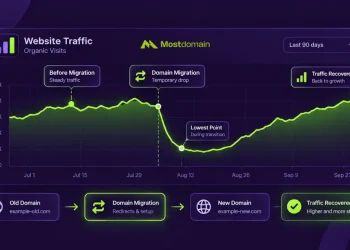
This is why website migrations break. You update the records at Mostdomain, but some ISPs keep serving the old cached IPs. You cannot force remote caches to clear. You just have to wait.
Quick tip: Reduce your TTL to 300 seconds a full 24 hours before moving a site. After the move, external servers will cache the old data for a maximum of five minutes. Downtime becomes practically zero.
What “Non-Authoritative Answer” Really Means
Windows users often panic when they see “Non-authoritative answer” in an nslookup. It is not an error.
Cached responses are always marked non-authoritative. Authoritative responses come directly from the zone host server. Both give you the exact same IP under normal conditions.
You only care about this right after changing records. To bypass caching completely, query the nameserver directly for your DNS lookup:
dig example.com @ns1.example.com
If you get a new IP here but standard queries still show the old one, you are just dealing with normal cache delays. Let the TTL run out.
Fast DNS Lookup Troubleshooting Steps
Is your service down? Running a DNS lookup helps isolate the fault immediately. Check these specific triggers:
✔ NOERROR and correct IP — DNS routing is perfect. Go fix your firewall or web server configuration.
✔ CNAME chain resolving — Aliases are functioning correctly.
✘ NXDOMAIN response — Typo in the command or the domain registration died.
✘ SERVFAIL response — Local network issue. Test using 8.8.8.8 instead.
✘ Old IP returned — Caches are holding the old record. Wait for the TTL to finish.
✔ Authoritative matches cache — Global propagation is done.
To verify global propagation, run a DNS lookup on several public servers at the same time (like Cloudflare and Google). Matching IPs confirm the update is live everywhere.
Final Thoughts
Huge blocks of terminal text look intimidating at first. Just isolate four elements: status codes, answer values, TTL timers, and response authority. Ignoring the raw formatting makes a DNS lookup a highly effective, straightforward diagnostic tool.
Common DNS Lookup Questions
Why does my DNS lookup return the old IP address?
Your resolver is relying on a cached record. The previous TTL timer is still counting down. Remote caches cannot be flushed manually. Lowering the TTL days before a migration is the only real fix.
Should I use dig or nslookup?
Both hit the same global systems. Windows includes nslookup for fast, basic checks. The dig tool exposes raw flags and query times. Use `dig` for any serious network troubleshooting.
How can I verify my DNS lookup changes have propagated?
Run a DNS lookup against major independent resolvers simultaneously (1.1.1.1 and 8.8.8.8). Full propagation means these different networks all return the same updated records.
References
- Cloudflare DNS Documentation, Time to Live (TTL) in DNS Records
- Microsoft Learn, DNS Queries and Lookups in Windows Server
- Linuxize, How to Use the dig Command to Query DNS in Linux
- IANA, DNS Parameters and Record Types
- Hostinger Knowledge Base, How to Troubleshoot DNS with dig and nslookup
- InterNetX Snapshot, What Is a DNS Lookup and How Does It Work